
Installation guide
Install MesoStudio on Windows and connect your account before setting up MapleStory capture.
Download MesoStudio
Open the MesoStudio Download page (opens in a new tab) and download the ZIP for 64-bit Windows 10 or 11.
Extract all files
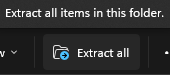
Open the downloaded ZIP in File Explorer and choose Extract all. Pick a destination and open the extracted folder.
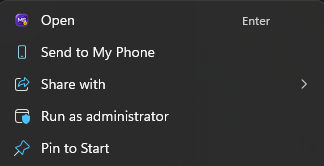
Run as administrator
In the extracted folder, right-click MesoStudio.exe and select Run as administrator. MesoStudio needs administrator privileges to send inputs to your MapleStory client.
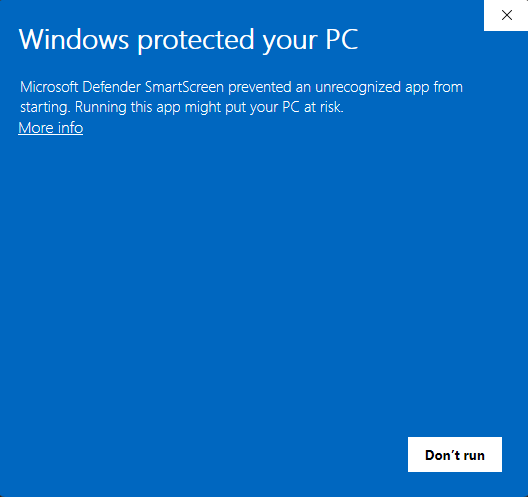
Respond to the SmartScreen prompt
On first launch, Microsoft Defender SmartScreen may show Windows protected your PC if the download has little or no reputation yet. If you downloaded the ZIP from the official MesoStudio Download page and the prompt is for MesoStudio.exe, select More info, then Run anyway if Windows offers it.
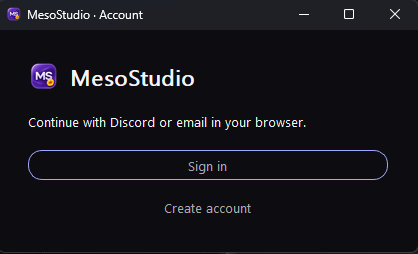
Open the MesoStudio sign-in window
When the MesoStudio account window opens, choose Sign in or Create account.
Connect your account in the browser
MesoStudio opens your browser. Continue with Discord or use an email sign-in link. Once you’re signed in, check that the approval code matches the one shown in the app. Click Connect desktop app, then return to MesoStudio.